
How to Recall an Email in Outlook 2010
Recall an email in Outlook 2010 – Step by Step instructions
Step 1: Go to your Sent Items folder. You can access this in the folder pane on the left side of the Outlook window.
**Step 2:**Open the email that you wish to recall. Ensure you double-click on the message to open it in a pop-up window. Simply having the message on the reading pane won’t enable you to recall it.
**Step 3:**Once you have the email open, head to the Message tab and select Actions. A menu will pop up and you will then have to select the Recall This Message option.
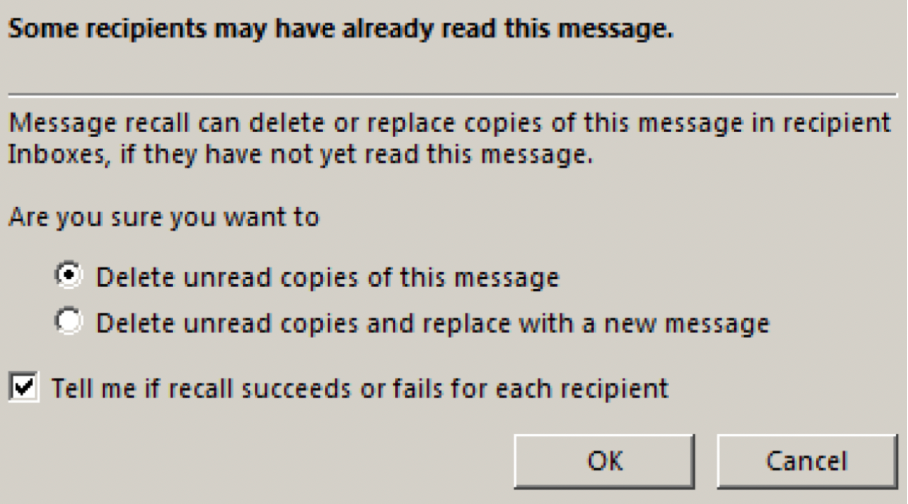
- Two options will appear, “Delete unread copies of this message” and “Delete unread copies and replace with a new message”. Select which option applies to your situation and then click OK.
- If you’re replacing a message, write the message and hit Send once you’re satisfied with it.
- You should receive a message from Outlook notifying you if the recall was a success.

Please note that this only applies to messages that haven’t been read by the recipient, so swift action is important!
See you soon!
The Lookeen team