
How To Fix Outlook Connectivity Problems
Troubleshoot Outlook Connectivity Problems
Sometimes it’s something simple that can throw off Outlook. If you’re having Outlook connectivity issues, then there’s a chance that Outlook is in Offline mode. If you are currently using Outlook 2007 or an earlier version then just click on File – if there is a checkmark next to Work Offline, then uncheck it, and that should solve it.
If you are using Outlook 2010 and/or a more recent version then you need to follow these steps:
- Click on the Send/Receive Tab
- Find the Work Offline button
- Click the Offline
Now look at the bottom of your Outlook window, it should show something saying ‘Trying to Connect…’ Once it connects, then your connectivity issue is solved, but if it’s still not connecting then move onto the next troubleshooting tip.

Rebuild the Data File
Outlook uses two different types of data files, .pst and .ost. Both files types are vulnerable to some errors that could cause Outlook connectivity problems. First follow these steps to see if it you re-connect:
- Close Outlook
- Open Control Panel from the Start Menu
- Find the Mail icon and click on it
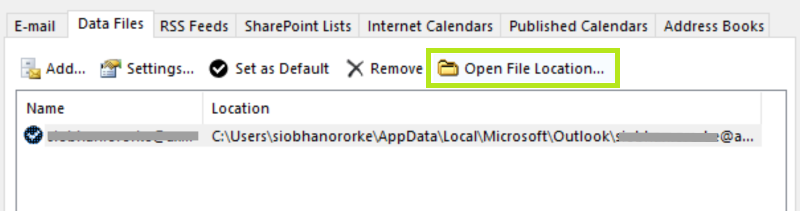
- In the window that opens, click the Data Filesbutton
- Find the file with the same name as your email address
- Click Open File Location…
- If your file is an .ost file, then right click to rename the extension to .OLD. If your file is .pst, do not change anything just yet.
- Now close all of the open windows, and reopen Outlook.
Outlook should start rebuilding your data file. This may take anywhere from 10 minutes to over an
hour, depending on the number of Outlook files you have. Make sure you don’t close Outlook while
it’s doing this!
Once it’s complete, a small message saying ‘All folders are up to date’ will appear.

If you do not have an .ost data file, but indeed a .pst file then you will need to follow the steps to run the Inbox Repair Tool.
- Open C:\Program Files or C:\Program Files (x86) in file explorer
- Type scanpst.exe in the search box
- Double click to run the application
- Your default .pst or .ost file should already be selected. If not: find your .pst file here.
- Click Start
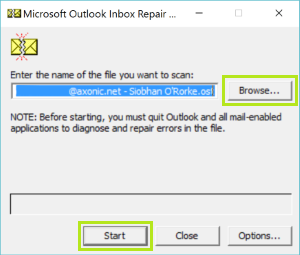
Scanpst runs a few scans on the data file. If it does find errors in the data file, it will ask you to click on the Repair button. When this happens, make sure to check the box that says ‘Make Backup of Scanned File Before Repairing’. Once this is done and the repair is complete, you can reopen Outlook.
Repair the Office Install
Another thing to try if you’re having Outlook connectivity issues is to try to repair the Microsoft Office install. It may fix some issues that other steps have not solved. To repair the install follow these steps:
- Open the Control Panel
- Click Programs and Features
- Find the Microsoft Office installation and click to select it
- Right click and select Change
- When the new window opens up select Repair. Click Continue
- Once the repair is done, restart your computer
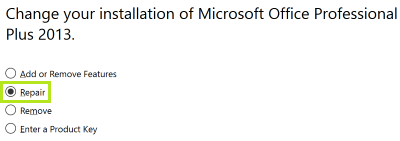
When your computer is back up and running, Open Outlook and see if it connects.
Is it Your Exchange Server Connection?
Outlook has a logging feature that can help you figure out what exactly is causing your the Exchange Server connection problem. You will have to turn logging on to use the feature.
To turn on logging in Outlook 2007:
- In theTools menu, click Options
- Click the Other tab then click Advanced Options
- Check the box next to “Enable logging (troubleshooting)”
- Click OK and restart Outlook
To turn on logging on Outlook 2010 and 2013:
- Open Outlook and click on the File tab
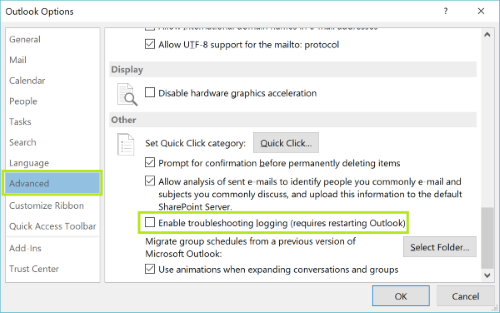
- Click on Options, then select Advanced.
- Check the box next to “Enable troubleshooting logging”(requires restarting Outlook)
- Click OK
- Now restart Outlook
When Outlook is up and running again, try to replicate your connectivity problem so that Outlook can log it. When you’ve done this, open the log file OPMLog.log.
To find the log file go to:
C:\Users\username\AppData\Local\Temp\OutlookLogging\
If you find error codes that do not look like this: “0x00000000”, then research the codes you find, which will let you know the cause of the Exchange Server connection problem.
One of these tips should solve your connectivity problems in Outlook. If for some reason you find that it is still not connecting, it may be a more complex issue that these troubleshooting tips cannot solve. This may require that you call an IT professional for help. Hopefully there will be no need for that, and your email will be flying in and out of Outlook.