
Prevention and Clean-Up Tips for Duplicate Emails in Outlook
How to stop the receiving of duplicate emails
-
One of the few things you can do to stop the receiving of duplicate emails is to check the Rules configurations to ensure that copies are not made to your Inbox. Thereby, make sure that all your rules end in “Stop Processing” actions.
-
Check the task manager and ensure that there is only one instance of Outlook running. Two instances running at the same time can lead to two duplicated messages arriving. As such, you may need to determine why two instances were running.
-
Another option would be to delete ALL your Outlook email accounts and recreate them.
-
If you use two email addresses with the same POP3 incoming and SMTP outgoing, this can lead to duplicate emails. Therefore, you must disable the receive on the second account.
Method 1: Avoid having numerous accounts in Outlook
**Step 1:**Open your Microsoft Outlook and click the filetab. Then select Info>Account Settings.
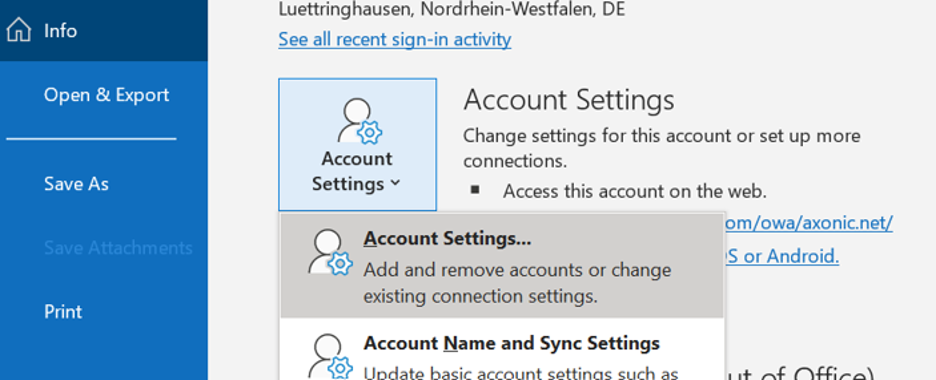
**Step 2:**In the Account Settings window, click on the email tab to search for the configured account name.
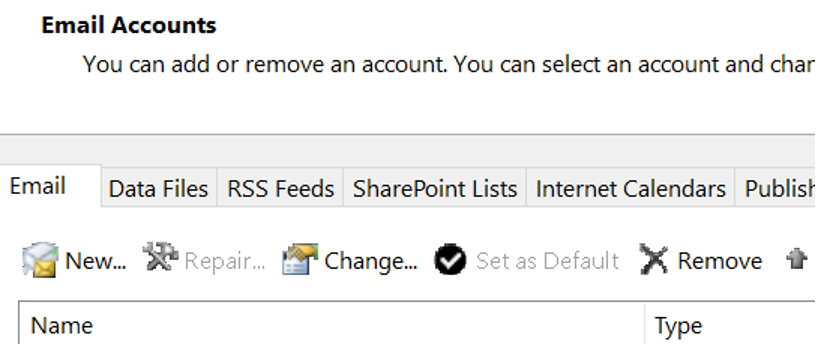
**Step 3:**In case it appears more than once, remove it. Therefore, you have to select the according mail account and press the Removebutton.
**Step 4:**Finally, press the Closebutton. Your duplicate account should then be completely removed from your Outlook.
Method 2: Remove Duplicate Emails via the Import/Export Option
**Step 1:**Open Microsoft Outlook and click the filetab
**Step 2:**Click Open/Exportand then Import/Export
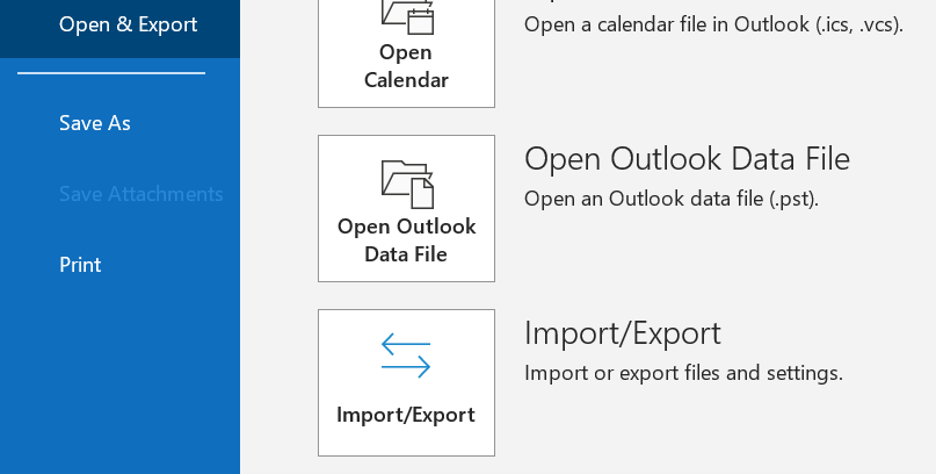
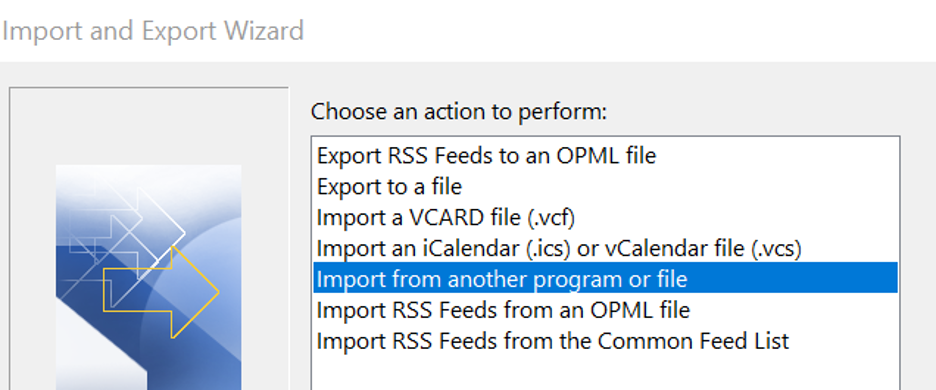
**Step 3:**The import and Export Pop Up Window should show up. Select Import from another program or fileand then click the next button.
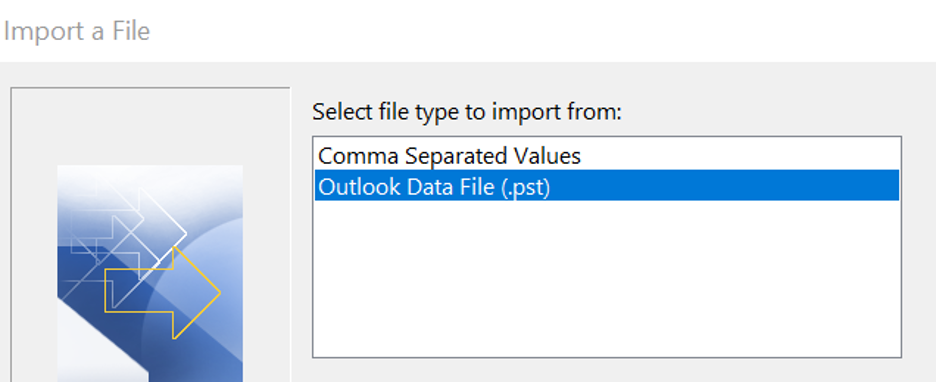
**Step 4:**Now, choose Outlook Data File (.pst) in Import a fileand press the next button.
**Step 5:**Select PSTand next.
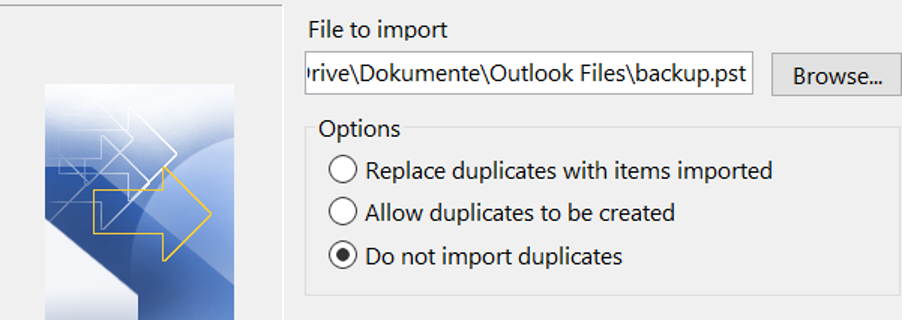
**Step 6:**Browse the data file and select the option *do not import duplicates.*Click Next.
**Step 7:**Finally, choose Outlook Data Filesto export all data and click the finishtab.
Method 3: Outlook Clean Up Tool
The built-in Microsoft Outlook Clean Up Tool may also be an option to remove duplicate files, emails, folders, or messages from Outlook.
**Step 1:**Open your Microsoft Outlook. You’ll find the Clean Up tool on the ribbon bar. Place a tab on it and then select all the options.
**Step 2:**You will then find three options: Clean up folders, Clean up folders and subfolders, Clean up the conversation. Select Clean up folders and subfoldersand click Yesto confirm.
**Step 3:**You can now provide the location of deleted folder items manually. Click on *Settings,*and a new window will appear.
**Step 4:**Select Browseand the Select FolderWindow will appear.
**Step 5:**Choose Deleted Itemsand click Ok.
**Step 6:**In this final step, click on the Clean up folderOption to delete duplicated emails from your Outlook mailbox.
Did one of the methods above help you to fix your issue with duplicated emails? Or do you know another strategy which might be helpful? Let us know in the comment section!
See you soon!
Aline & the Lookeen team