
How to Sync Google and Outlook Calendars
Just use one: How to Import Calendars
When it comes to using two kinds of programs or services from two different companies, you may run into some problems when it comes to syncing them up. This now applies to the Google and Outlook calendar syncing. The best advice is to just choose one of them and focus on using that specific calendar for all of your needs. Whether it is work related or something from your private life, both Google and Microsoft offer the option to use multiple calendars. Both also allow you to view the calendars separately or in a combined view.
If you decide to just use the Outlook Calendar, then it is simple to export the Google Calendar into your Outlook:
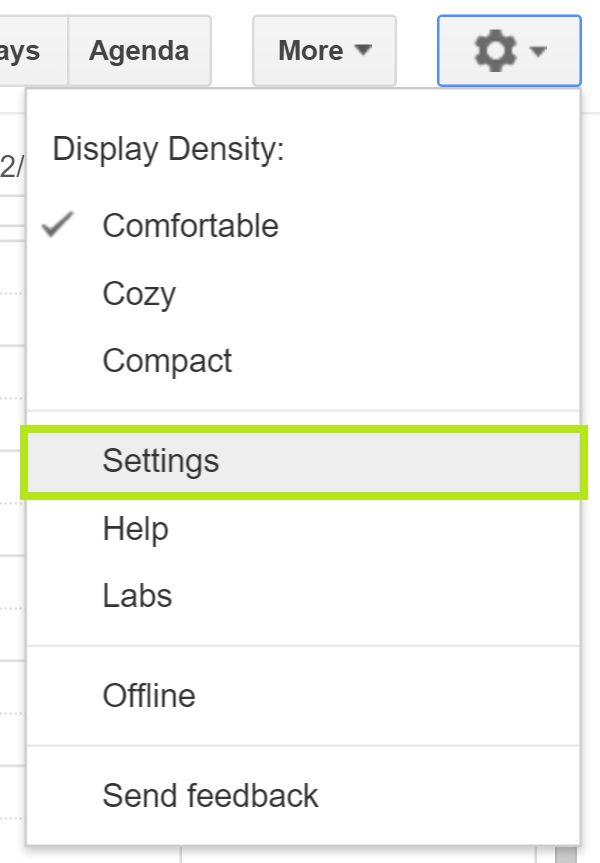
When you are in your Google account, click on the little button that looks like a gear, and go to Settings > Calendars > Export Calendars.
This will download a .zip file named youremail@gmail.com.ical.zip. Unzip this file and remember the location of the .ics file.
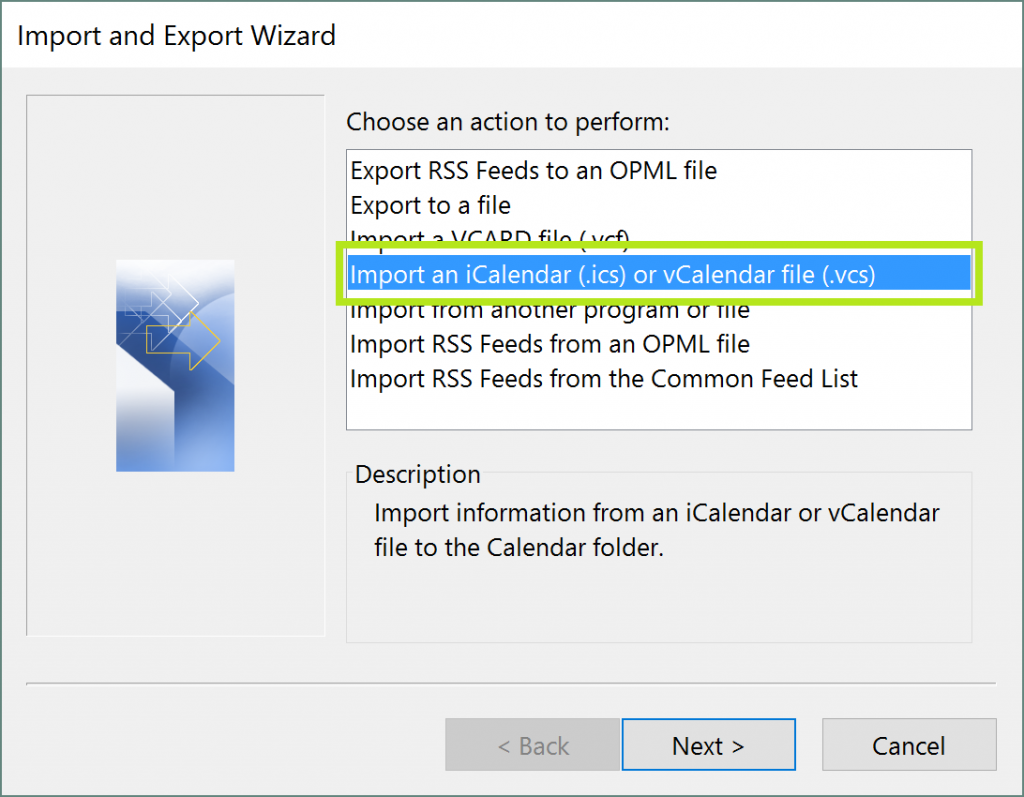
Now to import the file into Outlook go to File > Open and Export > Import and export, and then you will have to select the Import an iCalendar (.ics) File.
If you choose to use the Google Calendar over the Outlook Calendar, then you need to export the Outlook Calendar:
If you choose to use the Google Calendar over the Outlook Calendar, then you need to export the Outlook Calendar:
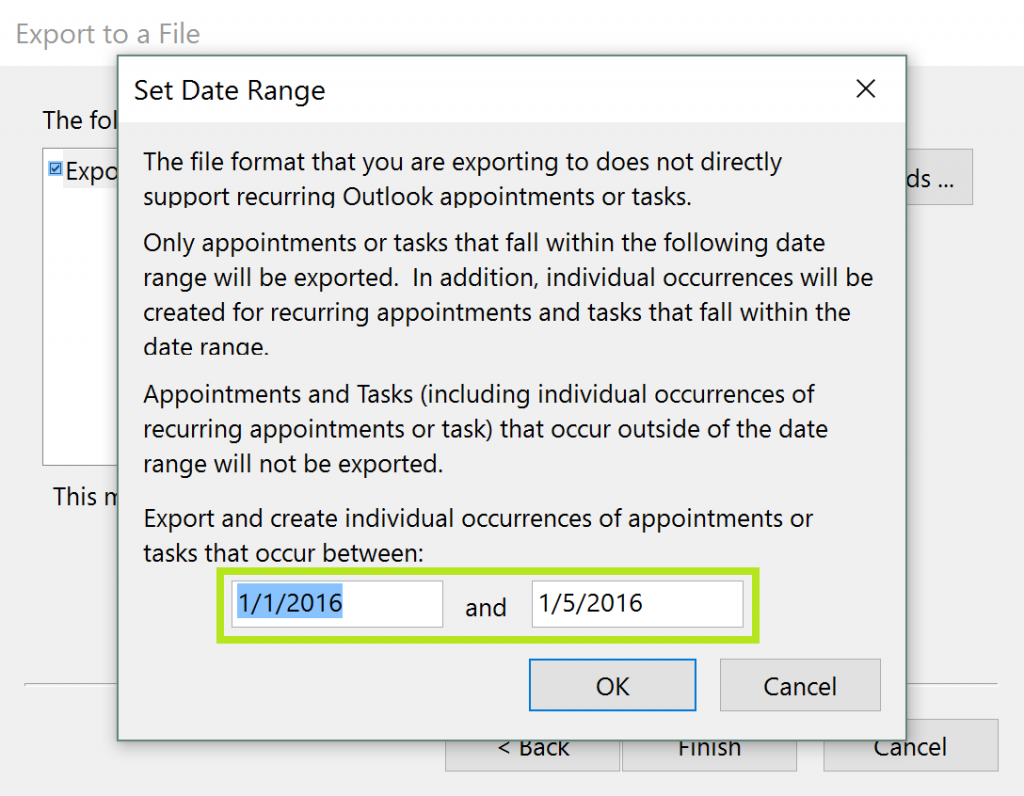
In Outlook go to File > Open and Export > Import and Export. Then choose Export to a file > Comma Separated Valuesthen choose Calendar from the list of Outlook elements & click Next. In the following window, under Save exported file as, choose where to save your calendar, and what to name it, then click Next. Click Finish, then select the date range of the calendar you’d like to export and click OK.
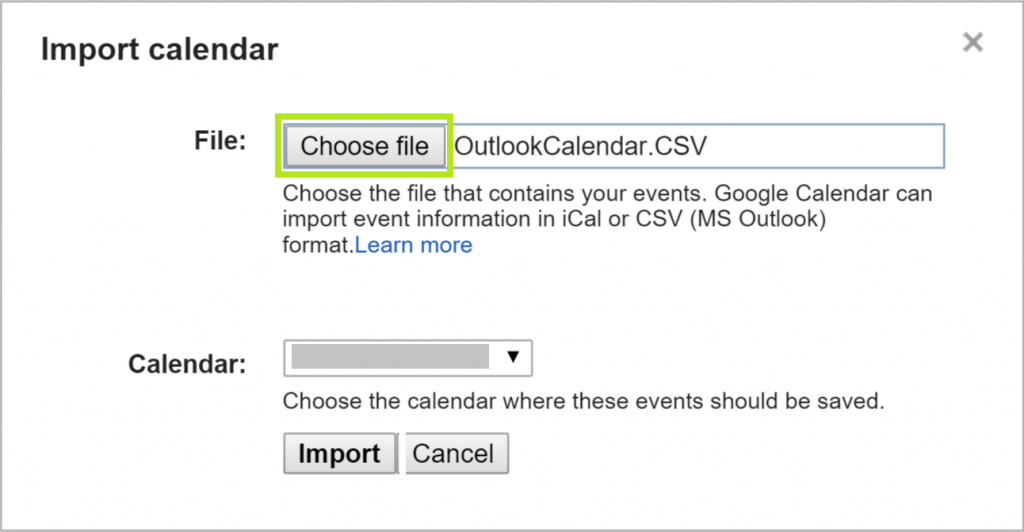
Now to import that file into Google Calendar, you will have to click the Import Calendar link next to the Create New Calendar button. Click Choose file then select the .csv file you saved. If you need to, choose which calendar to import it into with the Calendar drop down list, then click Import.
Can’t Choose? Synchronize Google and Outlook Calendar Apps
You’ve probably realized that the first option wasn’t really a syncing option as much as deciding between the two Calendars, but that can be the easiest way to do it. If you don’t want to, or can’t switch to just one of the calendars then you will have to use them on a smartphone or tablet. Whether Android or iOS, both have ways to sync up your calendars.
On Android
Install the Outlook.com app from the Google Play Store. Android will automatically read the Outlook calendar entries and merges them on to a calendar on the device. This, however, doesn’t actually sync the calendars, it just displays them in the same app. You won’t be able to add items to your Outlook calendar from the Android calendar.
On iOS
iOS works similarly – you can display multiple calendars at once, but you can’t add to all of them. Go to Settings > Mail, Contacts, Calendars > Add Account. Add your Outlook.com and Google accounts. A pop up will ask if you want to sync calendars, just accept it and you’re done! Any appointments or events you add to an calendar synced with your Outlook.com account or Google account will appear in the iOS calendar.
Inviting Yourself to a Calendar Event
The best way to get an item on both calendars is to invite yourself to an appointment you set into the calendar. In your Google Calendar you just have to invite yourself to the appointment by sending it to the Outlook email, and then in Outlook you just click the Accept button and it will then add the event or appointment to your Outlook Calendar.
If you don’t want to have to go through the trouble of constantly inviting yourself to events or appointments, there are third party programs or add-ins that will sync up your Google Calendar and Outlook Calendar. If you don’t want to spend the money, then the best route to take is to just choose one calendar to use and focus on.