

How to find a folder you accidently moved in Outlook
Find a specific folder in Outlook – Step by Step
You don’t have to go through each folder individually to find your lost folder!
Step 1: Right-click next to your inbox, then choose Properties
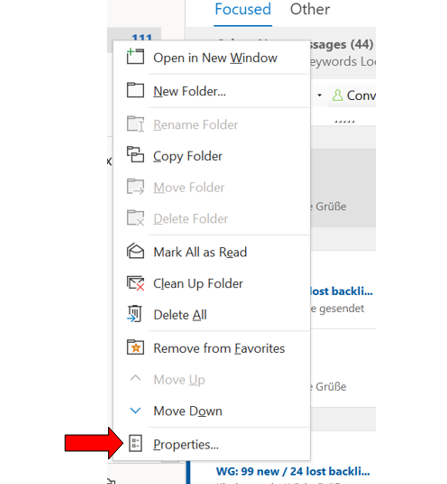
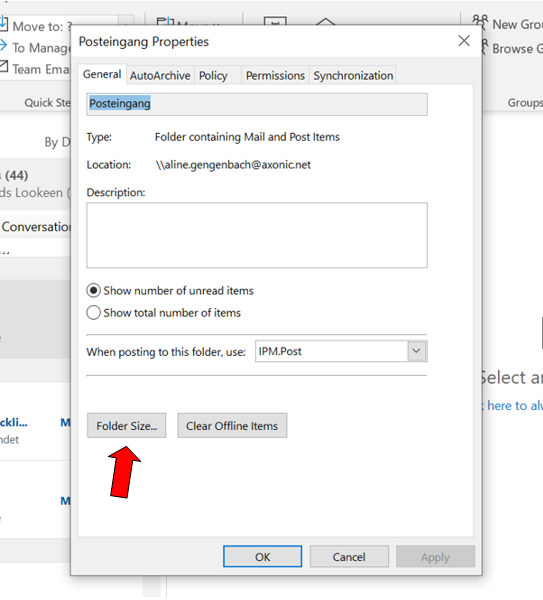
Step 2: Click the Folder Size field in the new window. Outlook now lists all folders and sub-folders in your mailbox by name. Once you have found the folder you are looking for in the list, you only have to look at the folder path and you will already know where the missing folder has ended up.
Search for an item with Instant Search
Another method to search for a lost folder is with the Instant Search. Note that you have to remember the name of an item that was in the folder to use this method.
If you still know of an item that was in that folder, doing a mailbox-wide search for it will also allow you to reveal which folder the message is in.
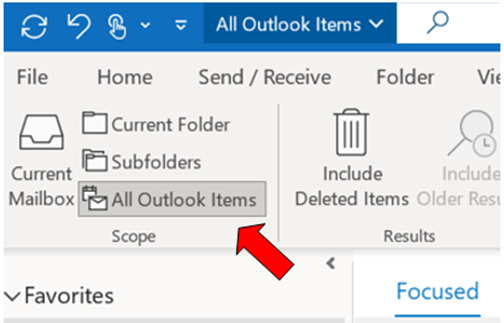
Step 1: Enter a keyword from the email you remember in the Outlook Instant Search bar. It is important to select All Outlook Items.
Step 2: Open the message separately by using a double click.
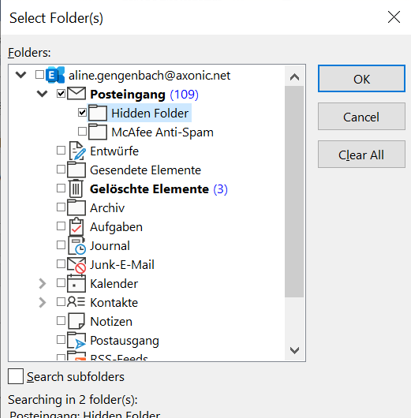
Step 3: Press Ctrl-Shift-F to open Advanced Find.
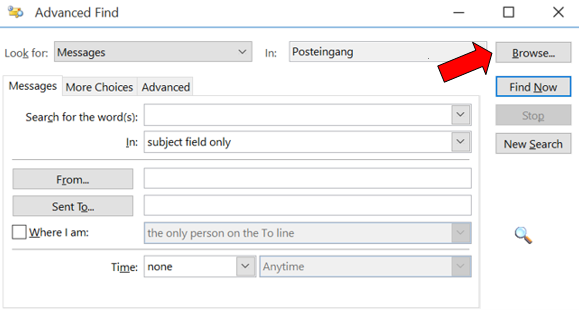
Step 4: By pressing the Browse Button, it should reveal the full path to the email.
Search Outlook with Lookeen
Instead of the conventional Windows search, you can also use an alternative desktop and Outlook search tool such as Lookeen. The principle remains the same, but Lookeen works faster and more reliably: Thanks to real-time indexing and extended search parameters, Lookeen is the perfect search solution if you are looking for Outlook folders.
With these steps, you should be able to easily find your moved or lost folder. If you have any unanswered questions, please feel free to use the comment function. I look forward to your feedback!
See you soon!
Aline & the Lookeen team