
How to Delete or Add an Account in Outlook
Outlook will support some HTTP email accounts, but we will pay closer attention to how to add account from Microsoft Exchange, POP3, and IMAP accounts as well. Maybe this is the first time you are adding an account to Outlook or maybe you are trying to add a work or personal account now to Outlook — whatever the case may be, here’s how to get the job done.
Adding a Microsoft Exchange Account
Adding a Microsoft Exchange account is easy if you are running Outlook for the first time – an Exchange Account can be added right from the start. If, however, you already use an Exchange account, and need to connect a second one for some reason, then you need to follow these steps:
- If you have Outlook open, close it.
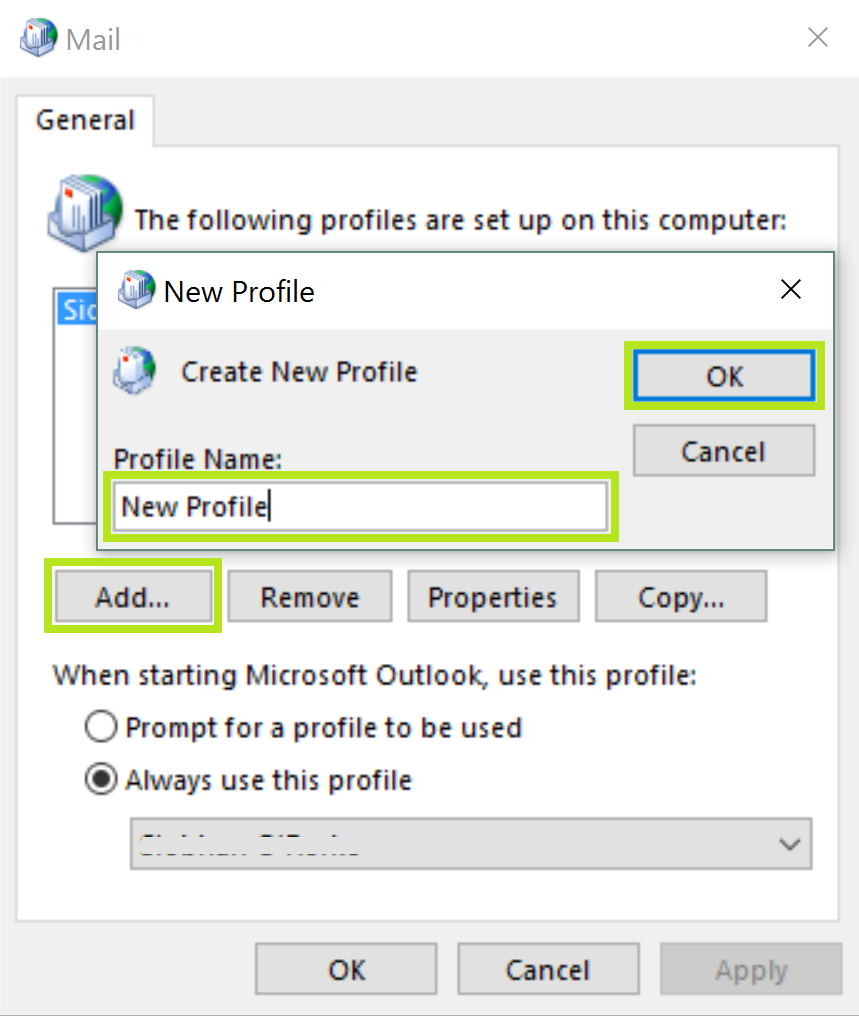
- Go to Control Paneland open the Mail
- Click Show Profiles…
- Type in a name for your new profile
- In the Add Account window that pops up, fill in the email address credentials you have for the account you’d like to add. Then click Next.
- When the configuration is complete, click Finish
Now you have set up your Microsoft Exchange account, it should connect when you open Outlook again. If the account cannot be automatically configured, you’ll need to manually add the account.
Adding POP3 and IMAP Accounts
Here’s how you can add a POP3 or IMAP account to Outlook:
- In Outlook 2007: Go to the Tools Menu and click on Account Settings Click on Email Accounts Click Microsoft Exchange, POP3, IMAP, or HTTP, and then Next
- In Outlook 2010, 2013, 2016: Go toFile (Outlook 2010, 2013, 2016) and click Account Settings > Account Settings Navigate to the E-Mail tab
- Click New
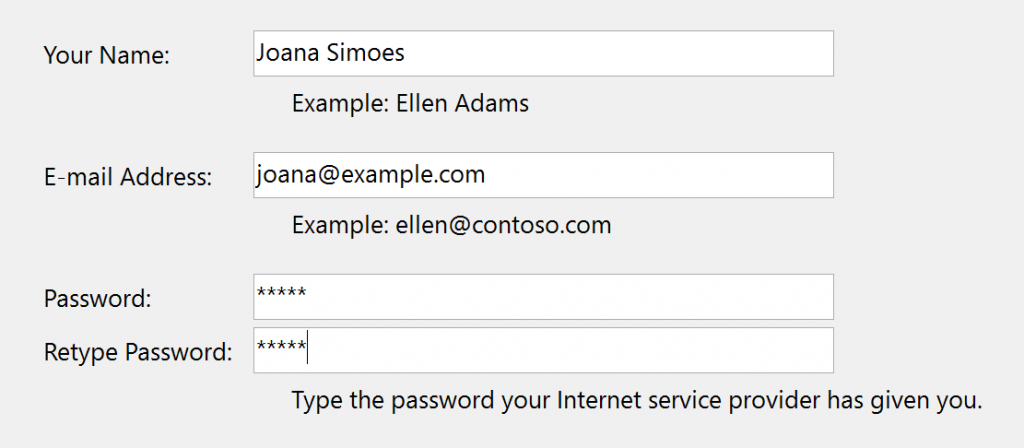
- In the box that says Your Name, type the name that you would like for others to see.
- In the box that says Email Address you will need to type in the full email address, username@email.com for example.
- In the boxes that say Password and Retype Password, type in the correct password that corresponds with the email address you typed in before.
- Click on Next
- Once it is all configured click on Finish
Once again, this should automatically set up your account. If it doesn’t work, here are the steps you can follow to set up a Gmail account in your Outlook profile, and how to stop Gmail from blocking Outlook.
Removing an Account from Outlook
This is just as simple if not even more so, as adding an account. Here are the steps to editing or removing an Account from Outlook:
- In Outlook 2007: Go to the Tools Menu and click on Account Settings
- And from Outlook 2010, 2013 and 2016: Go to File and click Account Settings > Account Settings
- Click on the account you would like to remove so that it’s highlighted
- Click Remove
- To confirm the removal of the account from Outlook just click Yes
Now you know how to add and remove accounts from Outlook. If you just need to edit something you can follow the steps for how to remove an account, but instead of removing, you choose the account and select Change. This will allow you to edit whichever account you’d like. Make sure before editing or removing that you are sure of what needs to be done.