

How to Create and Use Email Message Templates in Microsoft Outlook
How to create a new email message template step-by-step
Read about how to create your own email template, which you can adapt and modify as needed.
**Step 1:**Draw up a new email message with selecting Homeand *New Mail.*If desired for your template message, add a subject.
**Step 2:**Add text, graphics, images, signature, and other elements you want to be included in your email template.
Note: If you previously created an email signature which is automatically added to your email, remove any signatures in your template!
**Step 3:**Now that your template is set up, select File.
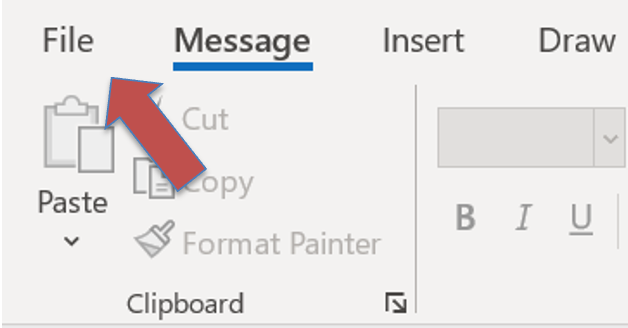
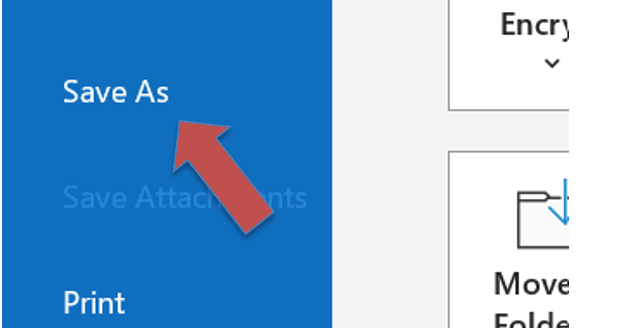
**Step 5:**Select*Save as.*Enter a filename.
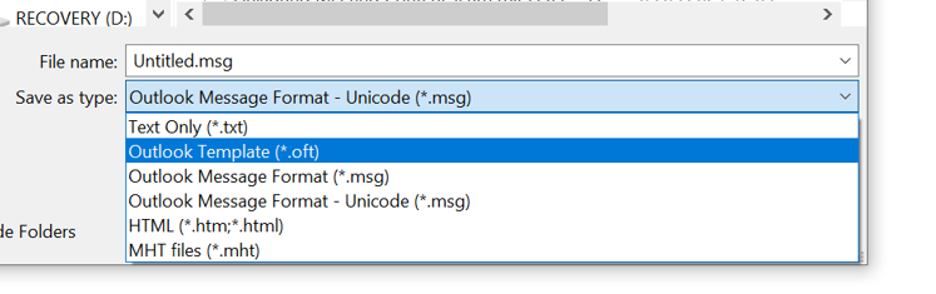
Step 6: Click on the Save as typedrop down arrow, then selectOutlook Template (*.oft).
**Step 7:**Select Save and close the original email.
How to compose an Email using a Template in Outlook
Read about how to use a saved email template to write a new message.
**Step 1:**Click on the Home tab.
**Step 2:**Select New Items > More Items > Choose Form.
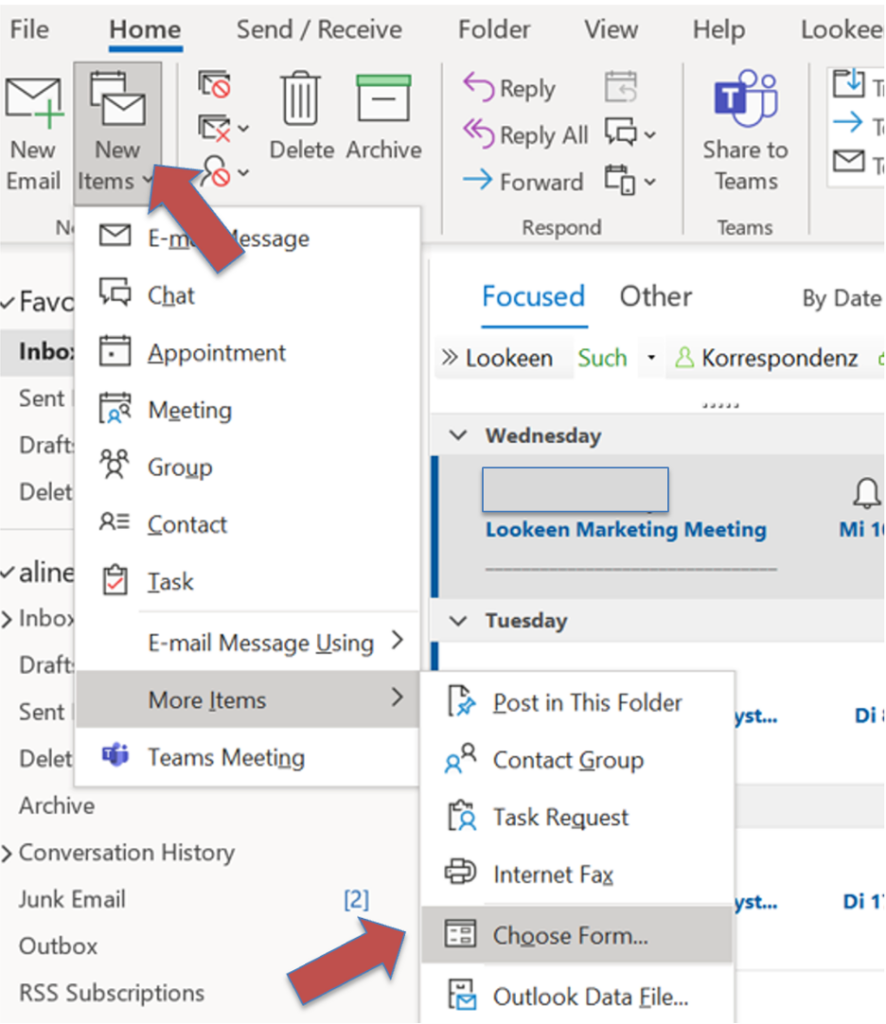
**Step 3:**The Choose Formdialog box will appear. Click on the Look In drop down arrow, and then User Templates in File System.
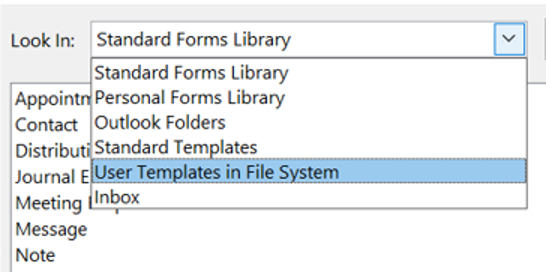
**Step 4:**Choose the template you want to use and click Open.
Was this article helpful for you? Why not leave a comment about your personal experience with Outlook Email templates in the comment section!
See you soon!
Aline & the Lookeen team