
How to Change the Default Font and Size in Outlook
Change Font Settings in Outlook 2010, 2013, and 2016
Customizing the font and the font size in Outlook is done in a few simple steps.
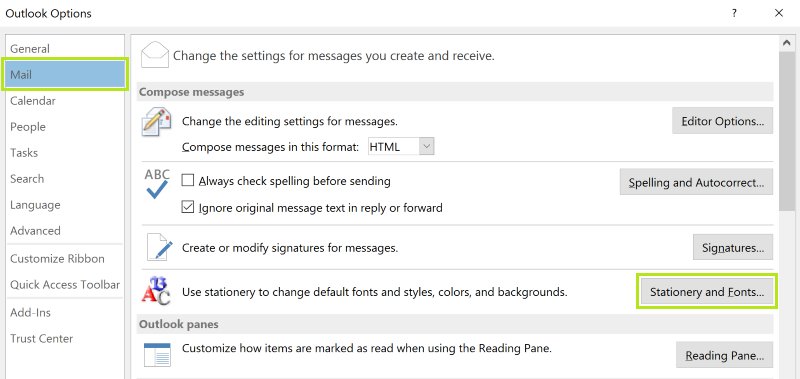
- Click on File in Outlook
- Select Options
- Then go to Mail
- Click where the Stationery and Fontsbutton under Compose Messages
- Navigate to the Personal Stationery tab
From here, you can change the font, color and style of new messages as well as replies and forwards. If you’d like to use a pre-defined theme from Outlook there are several options to choose from.
Using themes:
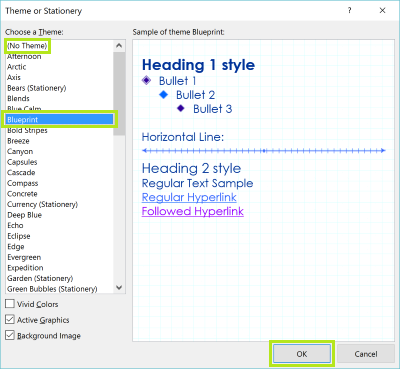
- Click on Theme…
- Choose your favorite theme from the Choose a Theme list
- If you don’t want to use a theme, make sure that (No Theme) is highlighted
- Now click on OK
You can also change the specific font settings you want Outlook to use, even if you have a theme applied:
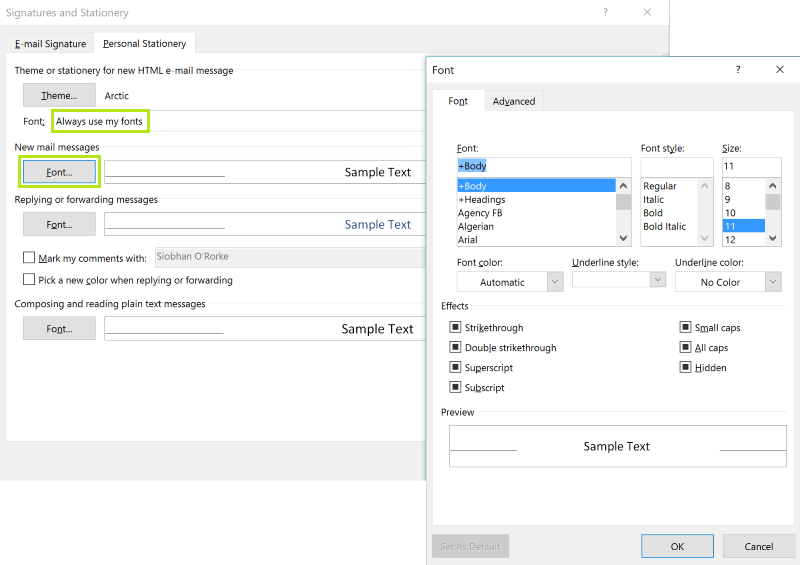
- Under Theme or Stationery for new HTML e-mail message make sure you select Use my font when replying and forwarding messages or Always use my fonts under the Fontdropdown menu.
- Now click the Font button under New mail messages, Replying or forwarding messages and Composing and reading plain text messages. You can choose whichever font and size you would like to use, and it should not be affected by the theme you’ve chosen.
- Click OK
Changing Font Settings in Outlook 2003 or 2007
If you are still using Outlook 2003 or 2007, then your steps are a little different to change the default settings.
- Go to Select Tools > Options
- Then go to Mail Format
- Click Fonts
- Now under New mail messages, Replying or forwarding messages and Composing and reading plain text messages click on the Font button and choose your desired fonts for each. You can choose the font, the size and the style you’d like to use in Outlook.
- Click OK
Now no matter which version of Outlook you are using, you will be able to customize the default fonts you are using. Make Outlook completely your own.