

How to add holidays to your Outlook calendar
Step by Step: How to add holidays to your Outlook calendar
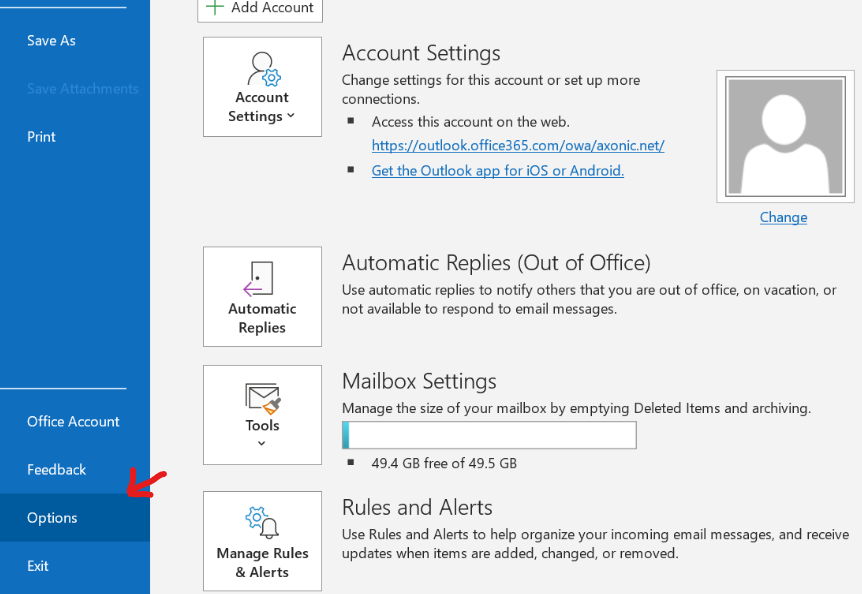
**Step 1:**Open your Outlook desktop app and click on the Filetab.
**Step 2:**Select Options.
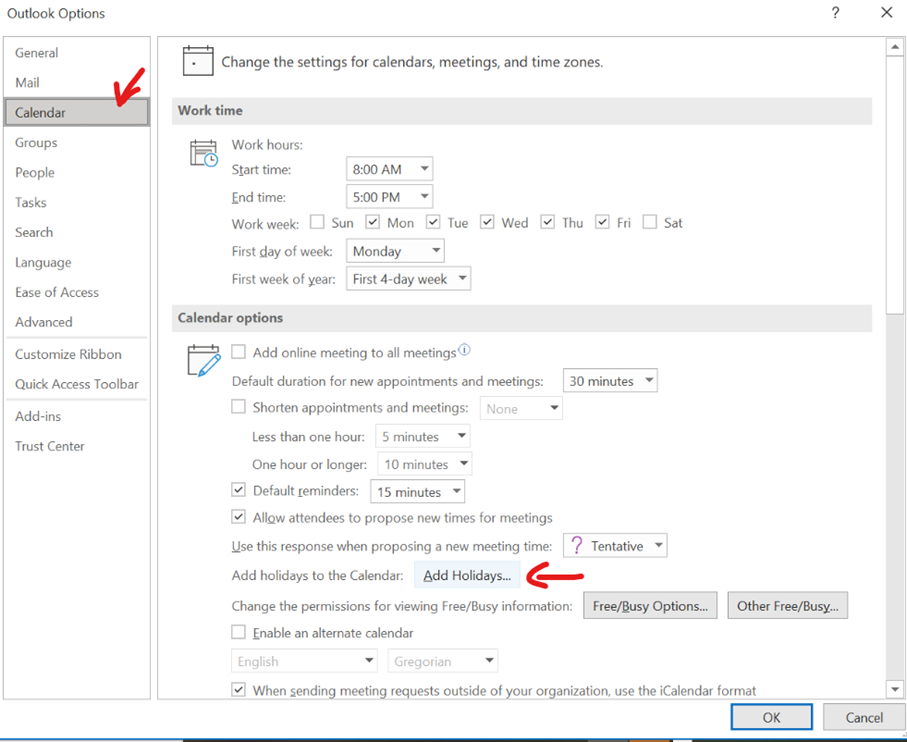
**Step 3:**A pop-up window will open. There, you can select Calender on the top left.
**Step 4:**Select Add holidays
Holiday updates
Make sure to install the latest updates before importing your holidays, as Microsoft uses regular Office updates to update, include, or remove existing ones. Depending on the Outlook version, there are differences in which year Outlook shows the holidays in your calendar.
- Outlook 2007 / Outlook 2010 Includes holidays up to 2028.
- Outlook 2013 Includes holidays up to 2022.
- Outlook 2016 Includes holidays up to 2026.
- Outlook 2016 / Outlook 2019 / Microsoft 365 Includes holidays up to 2026.
**Step 5:**Scroll through the list of countries until you find the one you want to have the holidays from in your calendar. Check the box next to the country.
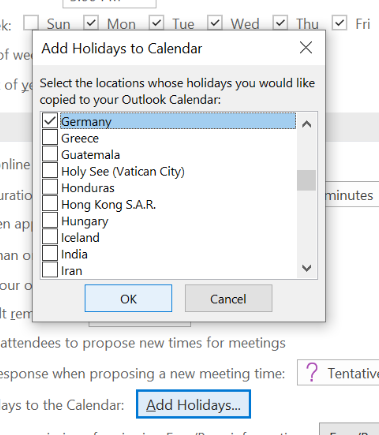
**Step 6:**Click OK to confirm.
I hope this will make your planning process easier and that you can use the holidays to draw new energy. If you have any questions you are very welcome to leave a comment!
Good Luck!
Aline & the Looken team