
How to Turn Off Read Receipt Requests in Outlook or Adapt Settings
Turn off Read Receipts in Outlook
**Step 1:**Open Outlook and click File.
**Step 2:**Select Optionson the bottom left, and then Mail.
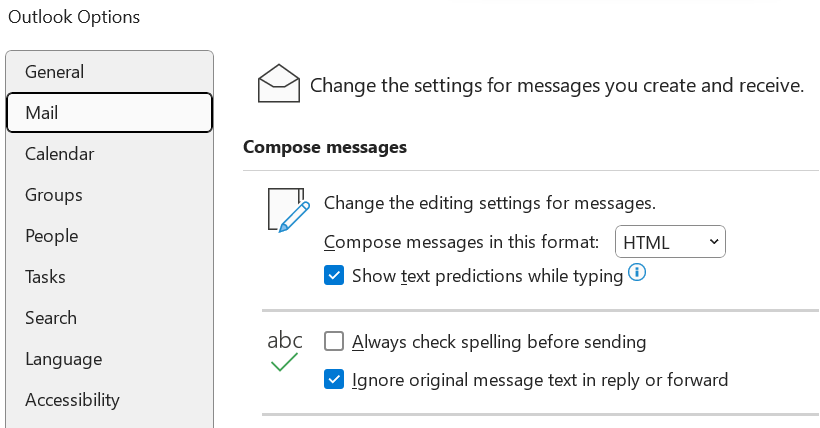
**Step 3:**Scroll down to the Trackingsection for any message received that includes a read receipt request.
**Step 4:**Beneath, click Never send a read receipt.
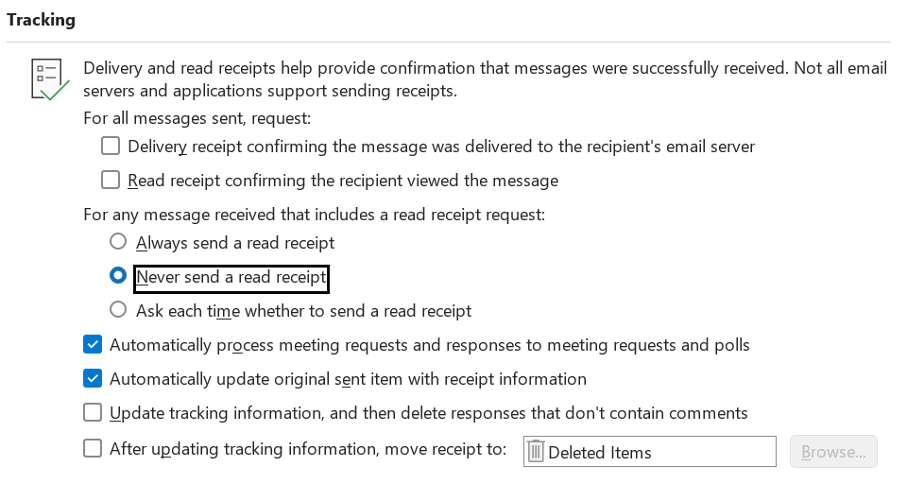
**Step 5:**Click Save.
How to Set Up Outlook to Automatically send Read Receipts or ask for Confirmation
**Step 1:**Open Outlook and click File.
**Step 2:**Select Options and then Mail.
**Step 3:**Scroll down to the Trackingsection for any message received that includes a read receipt request.
**Step 4:**Now, choose *“Always send a read receipt.”*As a result, Outlook will automatically send read receipts to the sender when receiving an email.
If you would like to receive read receipt requests, but do not like Outlook sending the notification automatically once a sender requests a read receipt, you can also select “Ask each time whether to send a read receipt.”
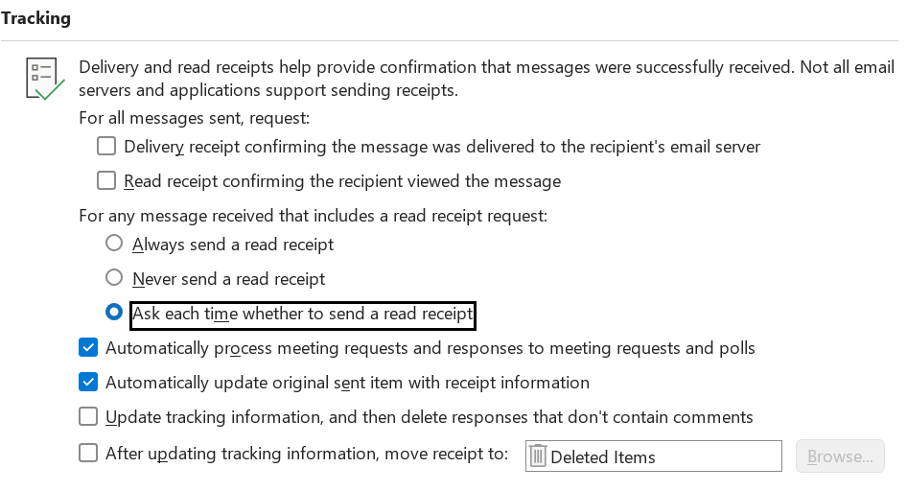
**Step 5:**Click Save.
Do you receive read receipt requests often, and what is your opinion about read receipts?
Let’s discuss this in the comment section.
See you soon!
Aline & the Lookeen team