

How to Ignore All Emails in a Conversation in Outlook
How to ignore a conversation step-by-step-guide
**Step 1:**In your Outlook Inbox, select the conversation (or any message within) that you’d like to ignore.
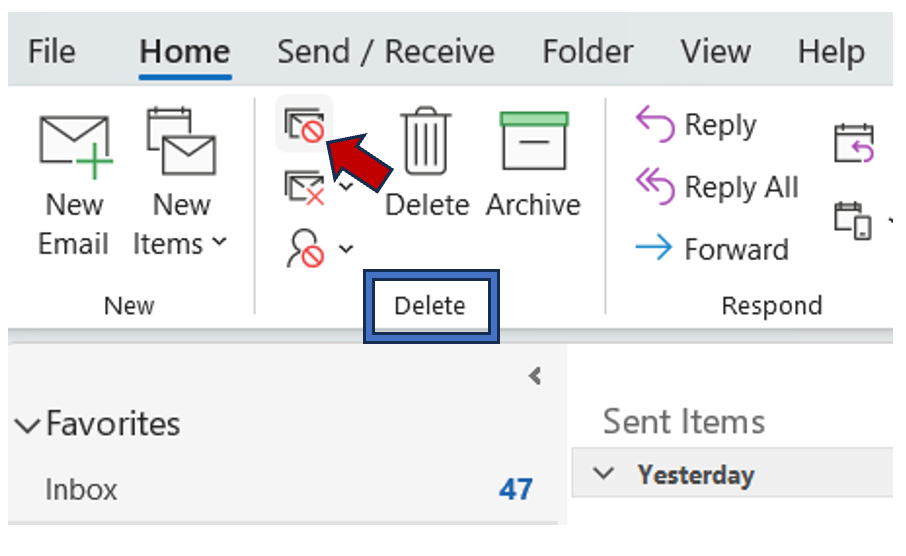
**Step 2:**Click on the Home tab and go to the Delete Group.
**Step 3:**Select Ignore.
Note: If you want to ignore a certain message, go to the Message tab.
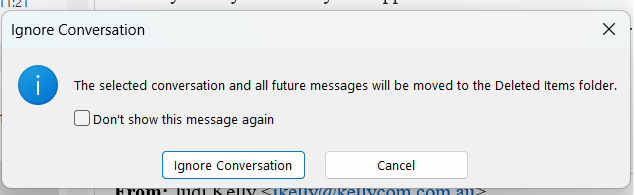
**Step 4:**A dialog box will ask you for confirmation. Click Ok to confirm that messages of the thread will be deleted.
How to Undo the Ignore Conversation Feature
If you selected the ignore conversation feature by mistake or changed your mind about being part of the thread, you can undo the command following the step-by-step guide. Note that you can only undo it if you haven’t emptied your Deleted Items Folder yet.
**Step 1:**Open your Deleted Items Folder in Outlook and select a message of the thread for which you want to undo the ignore conversation command.
**Step 2:**Open the message by double-clicking on it. The Ignore button will be highlighted on the top left to indicate that it is activated for the conversation,
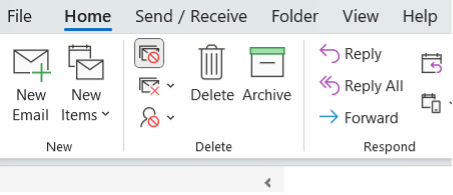
**Step 3:**You can deactivate it by simply clicking on Ignore.
**Step 4:**A pop-up window will ask you to confirm that you want to stop ignoring the conversation. Click Ok.
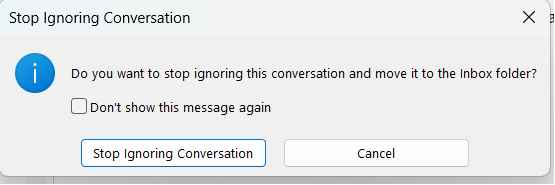
Now, all new messages from the conversation will appear in your inbox.
Do you often use the ignore conversations feature in Outlook? Let us know in the comment section.
See you soon!
Aline & the Lookeen team