
How To Fix Windows 10 Desktop Search Problems
Desktop Search Not Working: What do I do?
In Windows 10, Cortana powers your search. Cortana is supposed to be like a virtual assistant, but it may assist more in giving you headaches than actual results. Even when you disable Cortana, you will notice it still running in your task manager. I found that the reason my desktop search wasn’t working properly, and was showing me incorrect results stemmed from Cortana still running in the background.
To fix this desktop search problem in Windows 10, you just need to stop the Cortana process. It will restart itself right away, but if you go ahead and try to type in a search, you should see results showing up once again. Here’s how you can stop and restart the Cortana process:
- Hold down CTRL+Shift+ESC, which is the shortcut that allows you to open the task manager.
- Click the “more details” link.
- Locate “Cortana” in the background processes.
- Right-Click on it and then select “end task” from the menu.
This will end the Cortana process, but the operating system will reload it, which should have your search working again.
Windows 10 Search Not Working
Cortana may not always be the issue when Windows 10 search is not working. There are a few more solutions that can be tested out before giving up. Believe it or not Windows 10 Search not working is a common problem with PC users, and there are a plethora of solutions to try.
For example, one of the first steps is to give the Windows Search Troubleshooter a go. Open Control Panel > All Control Panel Items>Troubleshooting > System and Security then click Find and Fix Problems With Windows Search.
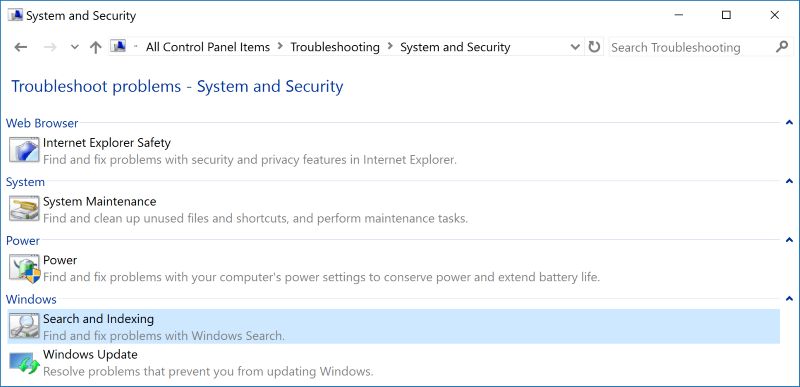
This opens the Windows Search Troubleshooter, you can run it and just follow the wizard. This may solve the issue of Windows 10 search not working.
Rebuild the Index for Windows 10 Search
Indexing is the backbone of your Windows 10 search. If there’s an issue with the index, then Windows 10 Search will not work properly. Your best bet when having a problem with the index is to try and rebuild it. Here’s how you can do that:
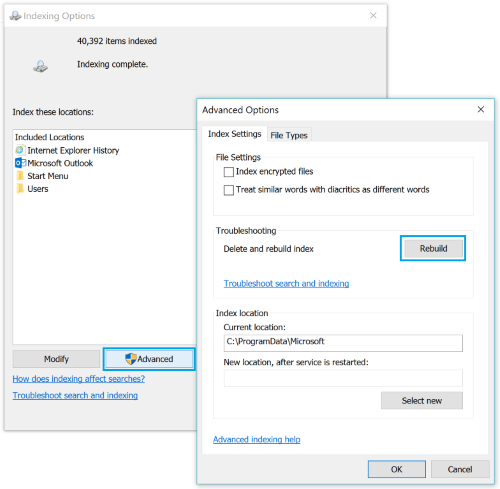
- Go to Control Panel and find Indexing Options
- Click where it says Advanced, and then make sure that you are in the Index Settings Tab within the Advanced Options
- Click the Rebuild Button
The rebuild of the Windows 10 Search index can be a time consuming process, and you may want to do this at a time when you won’t need to use your computer. Once it is done though, the index will be fresh and new, and your Windows 10 search should be up and running.
Critical Error Message
Many people may find Cortana and the desktop search functions in Windows 10 a very useful feature but, as you saw above, they can also cause some problems. One of the most major desktop search problems is a critical error message that some Windows 10 users are receiving. It looks something like this:
Critical Error – Start Menu and Cortana aren’t working. We’ll Try to fix it the next time you sign in.
Here are some things you can try to fix this problem:
- Try to sign out and then sign in again, or just restart your PC and check if that makes the error message disappear.
- If, by any chance, your PC prompts for ‘Automatic Repairs’, let it happen. Windows may fix it on its own.
- Try to stop the Cortana process as described above. The PC will automatically start it up once again.
- It is known that some security software can also cause this error message to show.
Trying these different things may get the critical error to go away, and get your desktop search and Cortana up and running again. Windows search may never be perfect, but there are always solutions to the various desktop search problems.
This article was originally published on 22.10.15. It has been updated to include more recent information.