
Close Original Message Automatically After Replying/Forwarding for Outlook 2010 & 2007
Outlook 2010: Step-by-Step Instructions
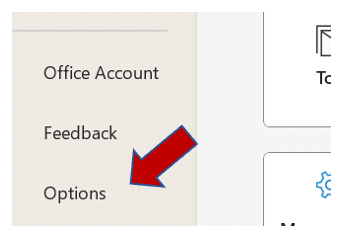
**Step 1:**Click on the “File” tab and press “Options”.
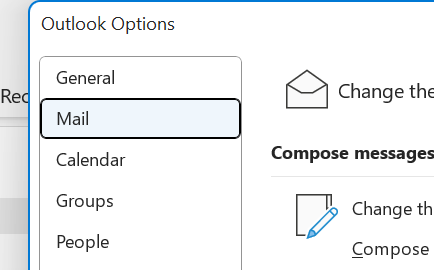
**Step 2:**Select “Mail” on the left of the Outlook “Options” dialog box that appears.
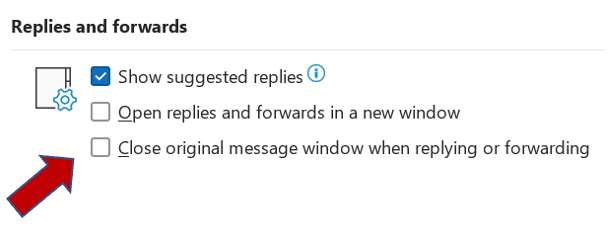
**Step 3:**In the “Replies and forwards” section, check the “Close original message when replying or forwarding” box.
**Step 4:**Press “OK”.
Now, original messages will be closed automatically after pressing the send button.
Outlook 2007: Step-by-Step Instructions
In Outlook 2007, the steps vary slightly:
**Step 1:**Click “Tools” in the upper panel and then “Options”.
**Step 2:**Now, the “Options” dialog box pops up. In the “Preferences Tab”, select “E-mail Options”.
**Step 3:**Check the “Close original message on reply and forward” box.
**Step 4:**Click “OK”.
Do you find this helpful? And what are your recommendations for efficient email management? Let’s discuss in the comment section!
See you soon!