

Change Language Settings in Outlook
How to change the display language in Outlook
Step 1: Start Outlook.
Step 2: Click “File” and then “Options”.
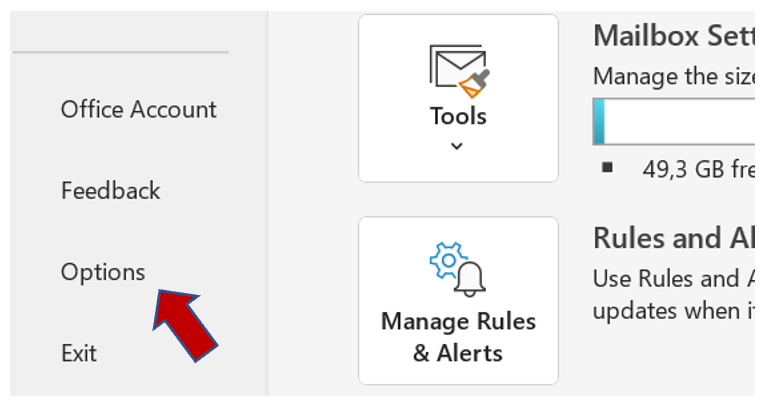
Step 3: Go to the “Language” tab.
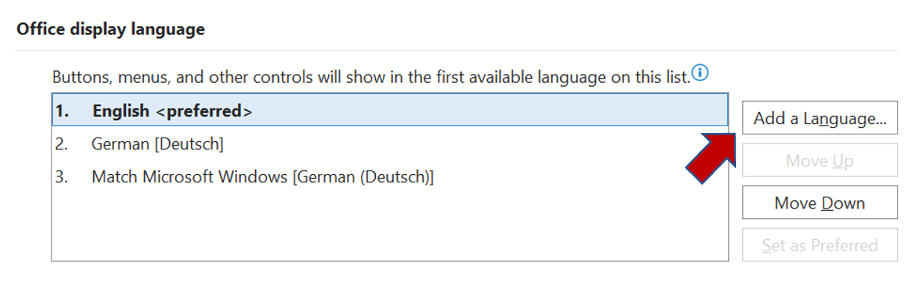
Step 4: Under the Office display language field, click on Add a language to install additional display languages and move down or up to select your desired languages.
Step 5: In the new window, you can choose which language you want to install.
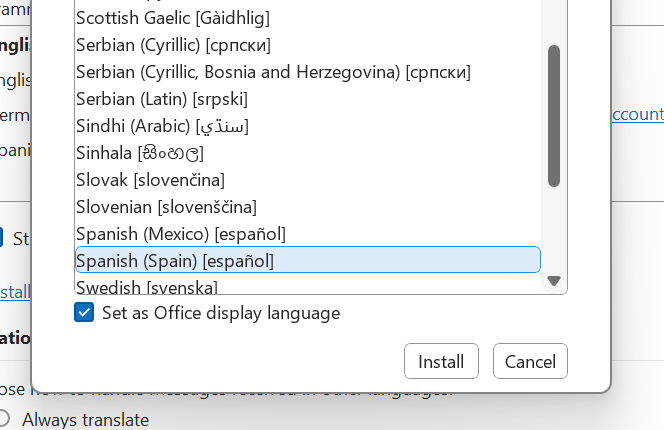
Step 6: With the*“Set as preferred”* button you can also set the respective language as the main language in Outlook.
How to Add a New language in Outlook
Step 1: Start Outlook.
Step 2: Click on “File” and then “Options”.
Step 3: Go to the “Language” tab.
Step 4: Under the Office Build Languages and Proofing Tools box, click “Add Language”. You can now select any language and set it as preferred.
I hope I was able to help you adjust your language settings in Outlook.
Which foreign languages do you speak? Let me know in the comment section!
See you soon!
Aline & the Lookeen team