

How to Save Multiple Attachments at Once in Outlook
Save Multiple Attachments in Microsoft: Step-by-Step Instructions
**Step 1:**Open Outlook and select the message with multiple attachments. You can open the message in a new window or on the same screen.
**Step 2:**Select the down arrow on the attachment file. Here you have the option to click “Save all Attachments”.
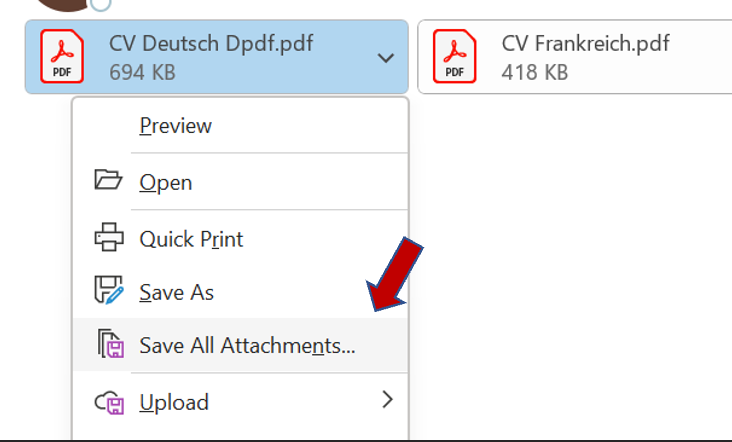
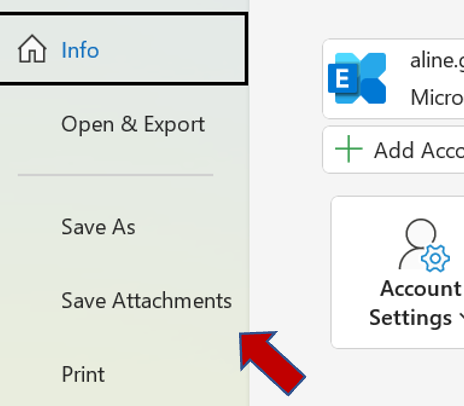
***Note:***If the menu box does not provide this option, click on “File tab” and then on “Save Attachments”.
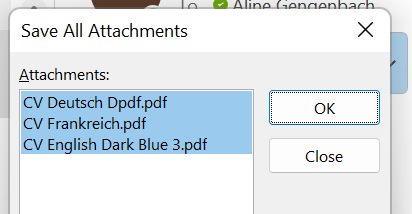
**Step 3:**You may now choose the attachments you would like to save in the pop-up window.
***Note:***There are two tricks enabling you to select the attachment files easily.
- For specific attachments: Press & holdCtrl key**when selecting the according files.
- For selecting all attachments at once: Press & holdShift key**and select the first attachment.
**Step 4:**Click “Ok”.
**Step 5:**Select the folder in which you would like to save the attachments.
Save Multiple Attachments in Mac: Step-by-Step Instructions
**Step 1:**Open the email. Select “*Attachments”*and then “Download all”.
***Note:***You can also select “Download all” underneath the attachments or use Shift+Command+E.
**Step 2:**Select the folder in which you want to save the attachments.
**Step 3:**Select “Choose”.
Save Selected Range of Attachments in Mac: Step-by-Step Instructions
**Step 1:**Open the message. Click “*Preview”*in the attachment area.
**Step 2:**Press & hold shift to highlight selected attachments.
**Step 3:**Right-click any file and select “Save As”.
**Step 4:**Choose the corresponding folder and click “Save”.
I hope this article was helpful to you. In case of any questions, do not hesitate to write in the comment section!
See you soon!
Aline & the Lookeen team