
Outlook Keeps Asking for Password (Office 365)
Have you come across a problem where Outlook constantly prompts you for your password to connect to Office 365, but when you try to cancel the prompt, you receive the following error message:
“The connection to Microsoft Exchange is unavailable. Outlook must be online or connected to complete this action.”
This password prompt issue can be caused if your logon network security is set to any value other than Anonymous Authentication. Luckily, this problem is easy to solve and is only annoying and not harmful to your computer.
Fixing the Password Prompt Error in Outlook 365
You will have to go into the Microsoft Exchange settings and security to fix this:
- Launch the Control Panel. In Windows 7, 8 & 10 you can just type Control Panel into the Start Menu and select it from the results.
- Find Mailand double click to open it.
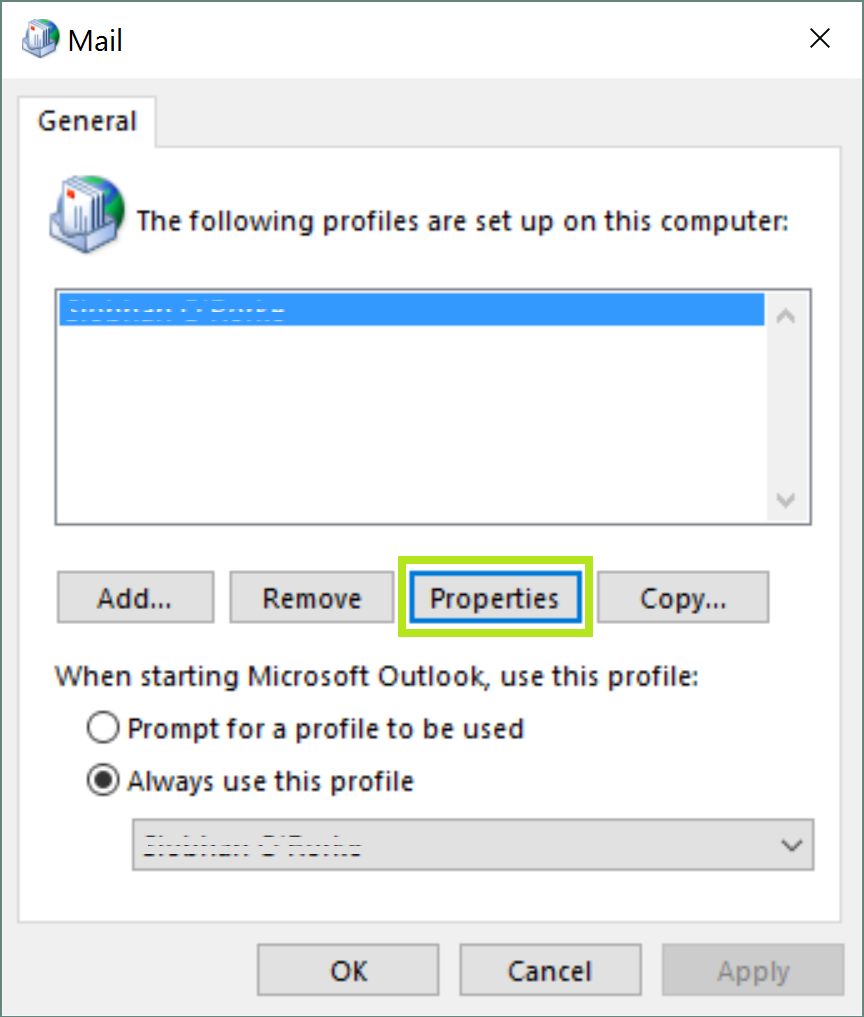
- Click where it says Show Profiles, choose the Outlook profile you need to check (usually just your name), and then click Properties.
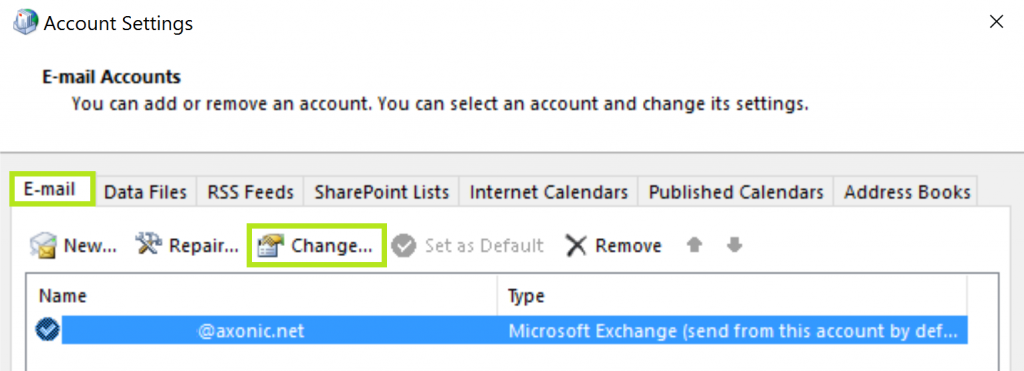
- Click Email Accounts to open Account Settings and within the E-mail tab, click Change.
- In the Change Account box, click More Settings.
- In the Microsoft Exchange window, navigate to the Security tab.
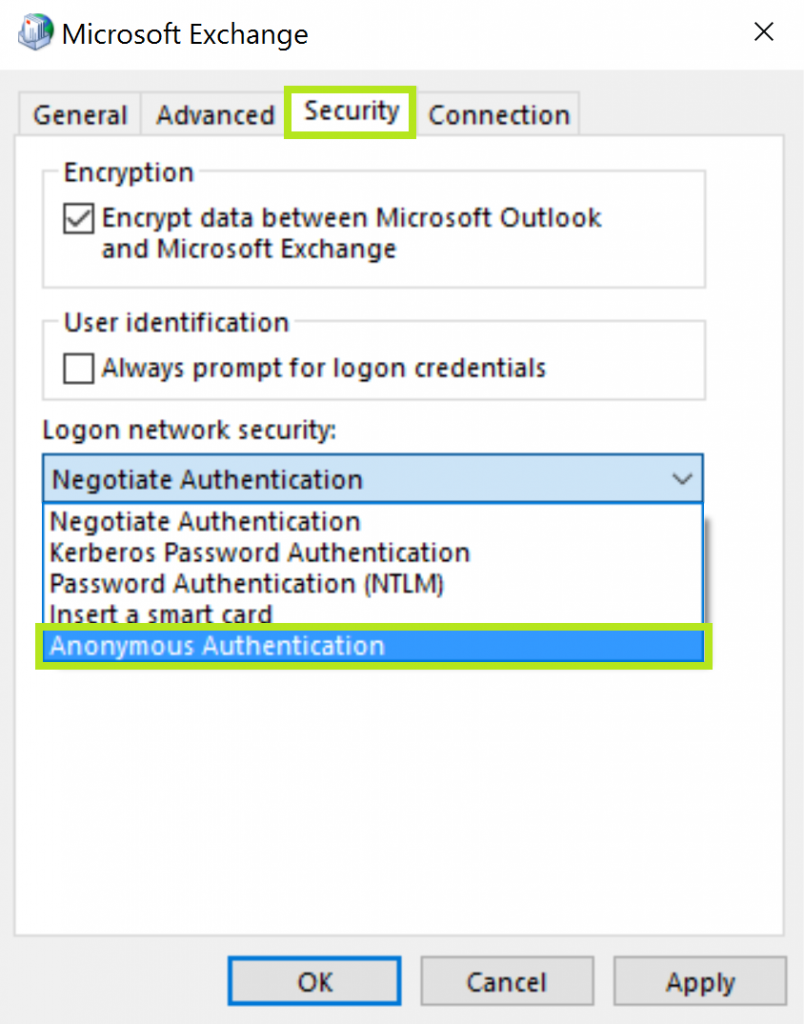
- From the Login Network Security dropdown menu choose Anonymous Authentication and click Applythen OK.
- Now back in the Change Account window, click Next, then click Finish.
Your password prompt issue for Outlook in Office 365 should now be solved.