

Create Rules to File your Emails Automatically in Outlook
How to automatically move your emails to folders step-by-step
Creating rules in Outlook simply means automated actions that take place when certain messages meet a set of criteria, which are predetermined by you, the user. Thus, Outlook users use rules to automate various processes like filtering, filing, and even sending emails. Setting up multiple Outlook rules will result in a more organized inbox and helps you to keep track of all your emails.
**Step 1:**Go to your inbox and open an email from the sender you want to automatically send emails to a folder.
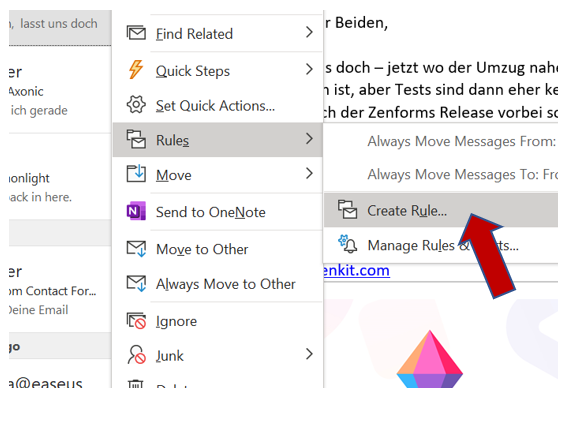
**Step 2:**Select the dropdown window at “Rules”, and there select “Create Rule”.
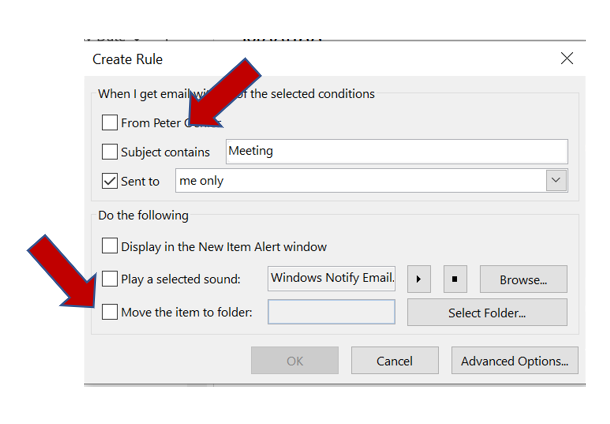
**Step 3:**Another window will pop up. Here, you can select conditions according to your needs. Choose who you wish to automatically file emails from, as well as any special conditions like “Subject contains” or “Sent to.” Only the emails according to selected conditions will be forwarded.
**Step 4:**Select “Move the item to folder:”.
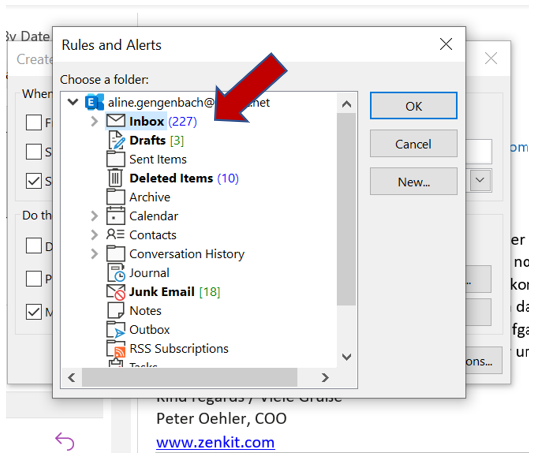
**Step 5:**Select the folder to which you wish to automatically send emails from the selected sender.
**Step 6:**Click “OK”.
Are you often overwhelmed with your incoming flood of emails? Or would you consider yourself to be a “Master of Organization” when it comes to Outlook? Let us know in the comment section!
See you soon,
Aline & the Lookeen team